The Pie Menu
Opening
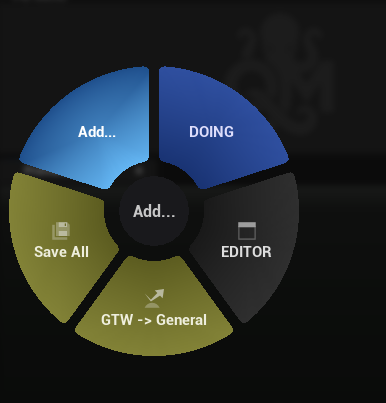
Press V (or your configured hotkey) anywhere in the editor. The pie menu appears centered at your cursor.
Navigation
- Hover over a wedge to highlight it
- Click (or release V, depending on activation mode) to execute the action
- Sub-menus expand as nested rings when you hover their parent wedge
- Back arrow appears at the center when inside a sub-menu — click to go back
- Go To Wheel wedges navigate to another wheel (with breadcrumb history)
- Mouse wheel can zoom the pie menu (preview mode only)
- Move cursor to center (dead zone) to deselect all
Activation Modes
Set in Project Settings or the Quick Menu Panel:
- Click and Release (default) — hover over wedge, release mouse/key to execute
- Click Only — click on wedge to execute
- Release Only — release the V key to execute whatever is hovered
Dismissing
- Click outside the menu
- Press Escape
- Press V again (in some modes)
- Click the dead zone center
- Switch focus to another window
Inline Editing
The pie menu is not just a launcher — it's also a live editor:
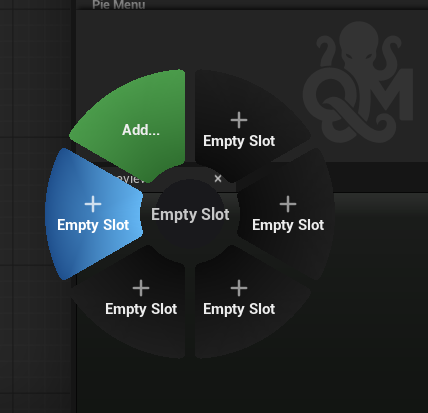
- "+" button — appears on the wheel when there's room for more wedges. Click to open the action picker and add a new action directly, without opening the graph editor.
- "X" button — appears on hover for connected wedges. Requires two clicks: the first shows a confirmation prompt, the second removes the connection.
- E key (configurable) — press while the pie menu is open to jump straight to the graph editor, focused on the current wheel.
Visual Indicators
- Submenu indicator arc — Wedges that lead to a SubMenu or GoToWheel display a thin bright arc (3px) offset slightly outside the wedge outer edge, making them visually distinct from pure action wedges.
- Warning toast — When an action cannot execute, a shake animation overlay appears on the wedge as a warning.
Context-Aware Behavior
When you press V, Quick Menu evaluates your graph:
- Starts at Root
- Follows Switch nodes based on current context
- Reaches a WheelOutput
- Displays that wheel's actions
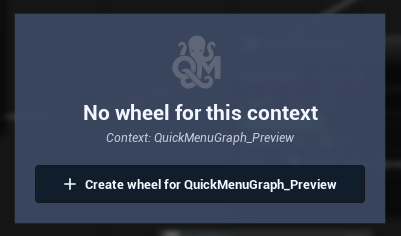
If no wheel matches the current context: - Falls back to a Default wheel (if one exists) - Or shows a "Create Wheel" panel (configurable in Project Settings)