Structural Nodes
These nodes define the structure of your menu graph — the flow from entry point to pie menu display.
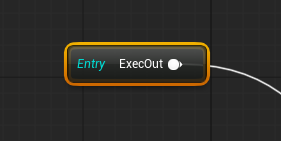
Root
- One per graph, cannot be deleted
- Single exec output pin
- Starting point for menu evaluation
- Every graph must have exactly one Root
WheelOutput
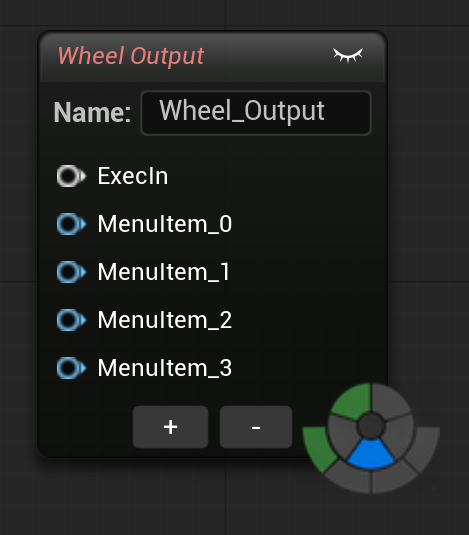
The terminal node that defines a pie menu wheel. Each input pin becomes one wedge.
Properties:
| Property | Type | Default | Description |
|---|---|---|---|
| WheelName | String | "Wheel" | Display name in the Wheel List and for Go To Wheel navigation |
| Category | String | — | Groups this wheel in the Wheel List sidebar |
| SortOrder | int32 | 0 | Sort priority within its category |
| NumMenuPins | int32 | 4 | Number of menu input pins (1–10) |
Note: Wedge colors and icons are set on individual action and SubMenu nodes (via
WedgeColorandIconBrushName), not on the WheelOutput node.
Pins:
- 1 exec input (white) — receives execution flow
- N menu inputs (blue) — each pin = one wedge (max 10)
Adding/removing pins:
- Select the node and press = to add a menu pin
- Press - to remove the last menu pin
- Or right-click → Add Menu Pin / Remove Menu Pin
SubMenu
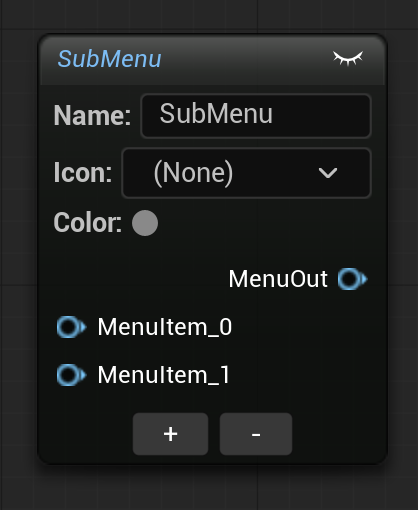
Groups actions into an expandable wedge. When the user hovers this wedge in the pie menu, children expand as a nested ring.
Properties:
| Property | Type | Default | Description |
|---|---|---|---|
| SubMenuName | String | "SubMenu" | Display name shown on the parent wedge |
| WedgeColor | LinearColor | Transparent | Custom color for this wedge |
| IconBrushName | Name | None | Slate brush for the submenu icon |
| NumMenuPins | int32 | 2 | Number of child menu input pins (1–16) |
Pins:
- 1 menu output (blue) — connect to a WheelOutput or another SubMenu pin
- N menu inputs (blue) — children, each pin = one child wedge
Nesting: SubMenus can be nested up to 4 levels deep (sub-menu within sub-menu).
Pin auto-naming: When you connect an action node to a menu pin, the pin's friendly name updates to match the action label (e.g., "Translate", "Rotate" instead of "Pin 0", "Pin 1").
Sequence
Executes multiple actions sequentially from a single wedge, with an optional delay between each. Connect action nodes to its menu input pins — they fire in order (pin 0 first, then pin 1, etc.).
Use case
Create a "Save & Compile" wedge that saves the Blueprint, waits 100ms, then compiles it — all from one click.
Properties:
| Property | Type | Default | Description |
|---|---|---|---|
| SequenceName | String | "Sequence" | Display name of the sequence wedge |
| DelayMs | float | 0 | Delay in milliseconds between actions (0–10000) |
| IconBrushName | Name | None | Slate brush for the sequence icon |
| IconTexture | Texture2D | None | Custom icon texture |
| NumMenuPins | int32 | 2 | Number of action input pins (1–16) |
Pins:
- 1 menu output (blue) — connect to a WheelOutput or SubMenu pin
- N menu inputs (blue) — each pin = one action to execute in order
Subgraph
Encapsulates a self-contained sub-graph inside a single node. This lets you build complex menu logic in an isolated graph and keep your main graph clean.
Each Subgraph node owns its own graph containing a TunnelEntry (entry point) and a WheelOutput. Double-click the node to open the contained sub-graph.
Properties:
| Property | Type | Default | Description |
|---|---|---|---|
| SubgraphName | String | "Subgraph" | Display name of the subgraph node |
Pins:
- 1 exec input (white) — receives execution flow
Note
Subgraph nodes cannot be duplicated. Each one is unique with its own internal graph.
TunnelEntry
Entry point inside a Subgraph's sub-graph. Automatically created when a Subgraph node is created.
- Cannot be deleted or duplicated
- Single exec output pin
- One per sub-graph
- Functions like a Root node, but inside the Subgraph scope
Comment
Standard comment block for organizing the graph visually. Press C in the graph editor to create one around selected nodes.
- Supports custom colors via a color picker in the Details panel
- Drag to move the comment and all nodes inside it
- No effect on menu evaluation — purely organizational