The Pie Menu
Opening
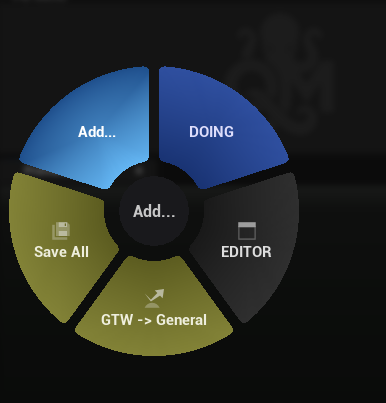
Press V (or your configured hotkey) anywhere in the editor. The pie menu appears centered at your cursor.
Navigation
- Hover over a wedge to highlight it
- Click (or release V, depending on activation mode) to execute the action
- Sub-menus expand as nested rings when you hover their parent wedge
- Back arrow appears at the center when inside a sub-menu — click to go back
- Go To Wheel wedges navigate to another wheel (with breadcrumb history)
- Mouse wheel resizes the pie menu while open (0.5x–2.0x zoom) — in list / radial-button mode (1.0.4) this adjusts
List Menu Distanceinstead, see below - Move cursor to center (dead zone) to deselect all
- Mouse wheel inside an open submenu (1.0.4) — cycles the submenu's options instead of resizing the wheel. A 250 ms sticky window prevents cursor jitter from immediately overwriting the scroll-picked item
- Directional hover for list submenus (1.0.4) — list-mode submenus now react to cursor direction the same way pie submenus do: pointing toward the list (even past it) selects items by Y projection, and going back toward the wheel center exits to the parent ring
Wheel Rotation (1.0.4)
Every WheelOutput carries a per-graph Rotation (°) property that the runtime honors. You can rotate any open wheel live, and the value is persisted with the asset.
| Gesture | Effect |
|---|---|
| Shift + Middle-drag | Rotate the wheel live (0.75°/px). Hold Ctrl for ×0.1 fine mode |
| Shift + Double Middle-click | Reset rotation to 0° |
- A live numeric overlay shows the angle during drag and fades out 1 s after release
- An inline
SSpinBoxon theWheelOutputnode stays in sync both ways with the runtime gesture - Optional snap mode (off by default) snaps to multiples of
Snap Angle Degrees. SettingSnap Angle Degreesto0auto-snaps to wedge boundaries (360° / N) - Radial buttons in list mode and their hover hit detection respect the ring's rotation (no more fixed cardinal angles)
Wheel Edit Mode (1.0.4)
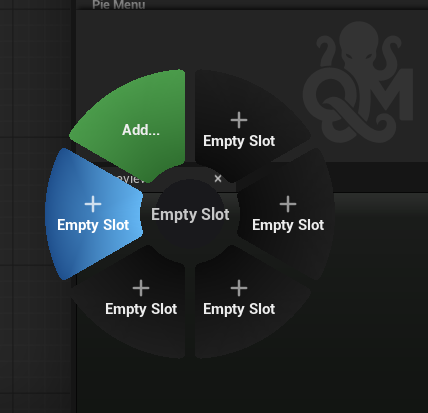
Open the wheel and press Alt to enter Edit Mode (background dims, a "WHEEL EDIT MODE" label appears above the wheel). Click + drag a wedge to swap it with another.
While dragging:
- The source slot is left visually empty — the item is "in your hand" as a card-style ghost following the cursor
- All other slots are repainted in a uniform neutral grey so category colors don't compete for attention
- A pulsing amber outline (pie mode) / pulsing border (list mode) advertises every valid drop target
- Hovering a valid drop slot fills it with bright orange and previews the swap in place — the source slot shows the target's content, the target slot shows the dragged item
- Submenu expansion is suppressed during drag so you can drop on parent wedges without their children popping open
- Both pie and list/radial-button layouts are supported
Reorder persists by swapping the LinkedTo arrays of the WheelOutput MenuItem_N pins inside an undoable transaction.
Activation: by default, Alt toggles Edit Mode (press once to enter, again to exit). Switch to Hold mode under Project Settings → Quick Menu → Interaction → Wheel Edit Mode Activation to activate it only while held.
The same drag-to-swap workflow is also available in the live wheel preview inside the graph asset editor — no Alt toggle needed, see Graph Editor → Preview Panel.
Activation Modes
Set in Project Settings or the Quick Menu Panel:
- Click and Release (default) — hover over wedge, release mouse/key to execute
- Click Only — click on wedge to execute
- Release Only — release the V key to execute whatever is hovered
Dismissing
- Click outside the menu
- Press Escape
- Press V again (in some modes)
- Click the dead zone center
- Switch focus to another window
Inline Editing
The pie menu is not just a launcher — it's also a live editor:
- "+" button — appears on the wheel when there's room for more wedges. Click to open the action picker and add a new action directly, without opening the graph editor.
- "X" button — appears on hover for connected wedges. Requires two clicks: the first shows a confirmation prompt, the second removes the connection.
- E key (configurable) — press while the pie menu is open to jump straight to the graph editor, focused on the current wheel.
Visual Indicators
- Submenu indicator arc — Wedges that lead to a SubMenu or GoToWheel display a thin bright arc (3px) offset slightly outside the wedge outer edge, making them visually distinct from pure action wedges.
- Warning toast — When an action cannot execute, a shake animation overlay appears on the wedge as a warning.
Context-Aware Behavior
When you press V, Quick Menu evaluates your graph:
- Starts at Root
- Follows Switch nodes based on current context
- Reaches a WheelOutput
- Displays that wheel's actions
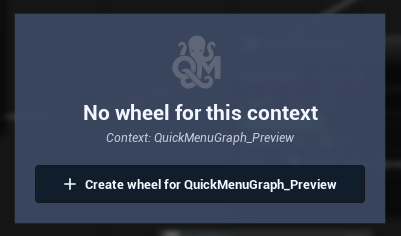
If no wheel matches the current context: - Falls back to a Default wheel (if one exists) - Or shows a "Create Wheel" panel (configurable in Project Settings)