The Graph System
Quick Menu uses graph assets (like Blueprint graphs, but simpler) to define your menus. You create a Quick Menu Graph in the Content Browser, then set it as active in Project Settings.
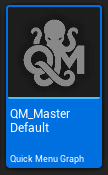
These are the Quick Menu Graph assets you'll find in your Content Browser.
Evaluation Flow
- Root node — entry point, always one per graph
- Switch nodes — route to different outputs based on context (what's selected, which editor is active, etc.)
- WheelOutput nodes — terminal nodes that define a wheel (pie menu). Each input pin on a WheelOutput is one wedge in the pie menu
- Action nodes — connect to WheelOutput pins to define what each wedge does
- SubMenu nodes — group actions into expandable sub-menus within a wheel
When you press V, Quick Menu walks this graph starting from Root, evaluates any Switch nodes, and displays the resulting WheelOutput as a pie menu.
Pin Types
- Exec pins (white) — execution flow from Root through Switches to WheelOutputs
- Menu pins (blue) — connect actions and sub-menus to WheelOutput input pins
Only same-type pins can connect: exec to exec, menu to menu.
Multiple Graphs
You can create multiple Quick Menu Graph assets — each with its own logic, wheels, and switch routing. Only one graph is active at a time.
Where to set the active graph: - Project Settings → Plugins → Quick Menu → Active Graph - Quick Menu Panel → Active Graph dropdown in the header - Content Browser → right-click a graph asset → "Set as Active Menu" (UE 5.0+) - Graph Editor → Graph Op action → "Set as Active Graph"
Why multiple graphs? - Different graphs for different workflows (modeling vs. level design vs. cinematics) - A "simple" graph with just the basics and an "advanced" graph with everything - Team members can have personal graphs while sharing the same project - Quick switching via the Panel dropdown — no need to dig into settings