Creating Your First Wheel
This guide walks you through creating a Quick Menu Graph and your first pie menu wheel in under 5 minutes.
Step 1: Create a Graph Asset
- In the Content Browser, click Add → Quick Menu → Quick Menu Graph
- Name it (e.g., "MyMenuGraph")
- Double-click to open it in the graph editor
Step 2: Understand the Layout
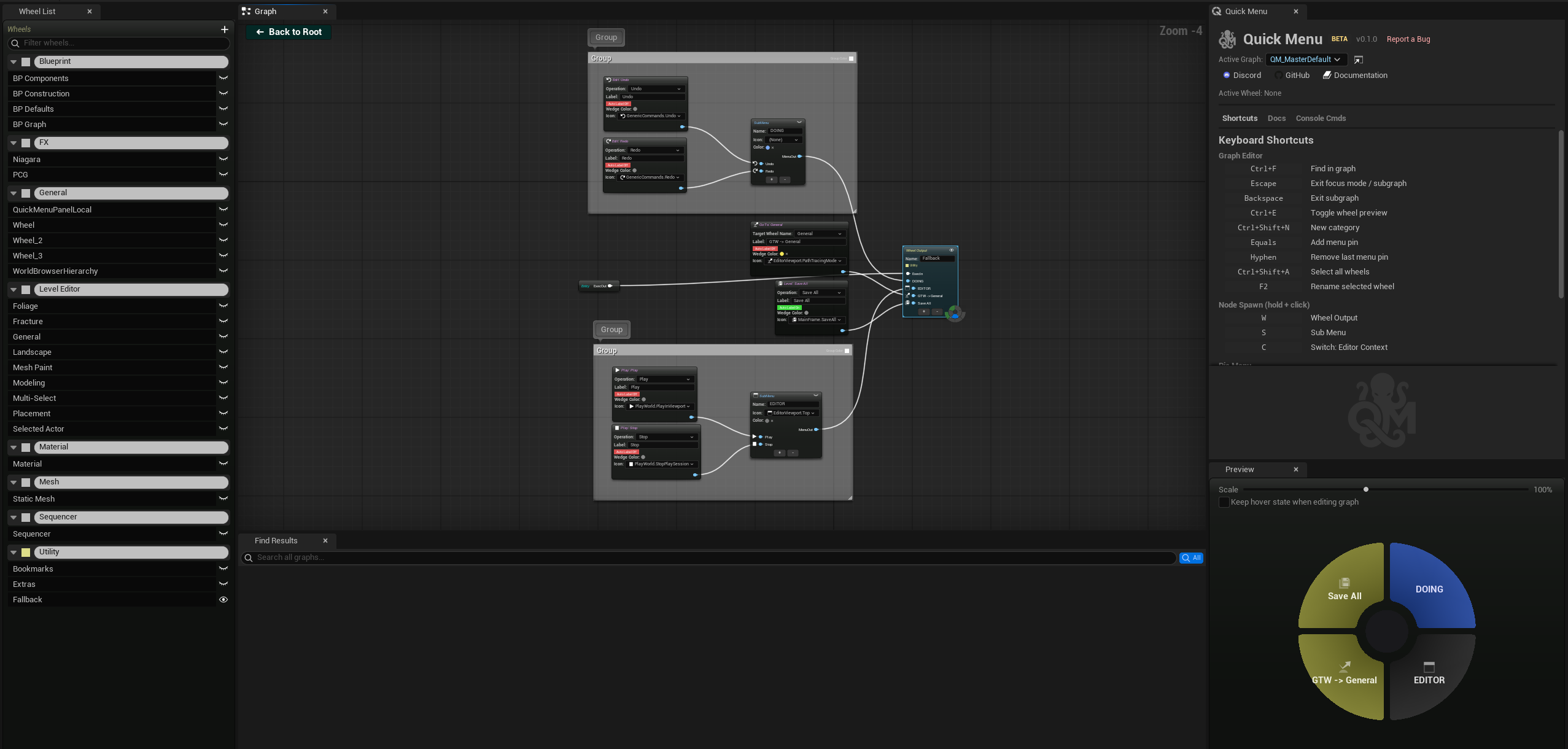
The graph editor has 4 panels:
- Graph Canvas (center) — where you place and connect nodes
- Wheel List (left) — lists all your wheels, organized by category
- Preview (right) — live pie menu preview of the selected wheel
- Find Results (bottom, Ctrl+F) — search across all nodes
Step 3: Add a WheelOutput
The Root node is already placed. Now add a wheel:
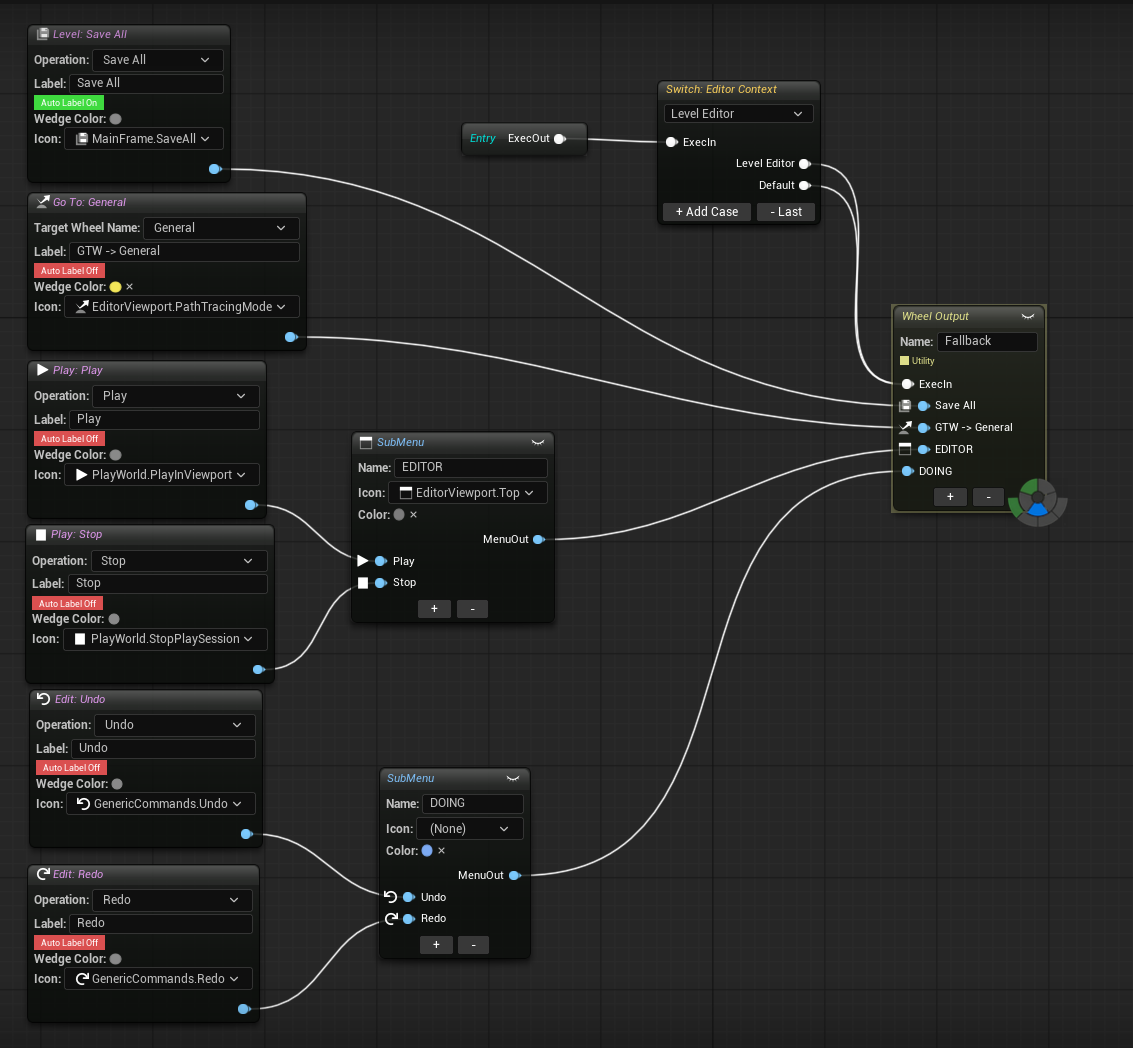
- Right-click on the canvas → search "WheelOutput" → click to place it
- Connect the Root's exec output (white pin) to the WheelOutput's exec input
- Name your wheel in the Details panel (e.g., "Main Tools")
Shortcut: Hold W and click on the canvas to instantly spawn a WheelOutput.
Step 4: Add Actions
- Right-click the canvas → browse Actions categories or search
- Add a few action nodes (e.g., Transform Mode, Select Op, Spawn Shape)
- Connect each action's menu output (blue pin) to a WheelOutput menu input pin
Shortcut: Select your action nodes, then hold W and click — a WheelOutput spawns and auto-wires all selected actions.
Step 5: Set as Active Graph
There are 3 ways to set a Quick Menu Graph as the active graph:
From the Graph Editor
When a graph is open, click the Active badge in the top-left corner of the Graph tab. The green checkmark confirms the graph is currently active.

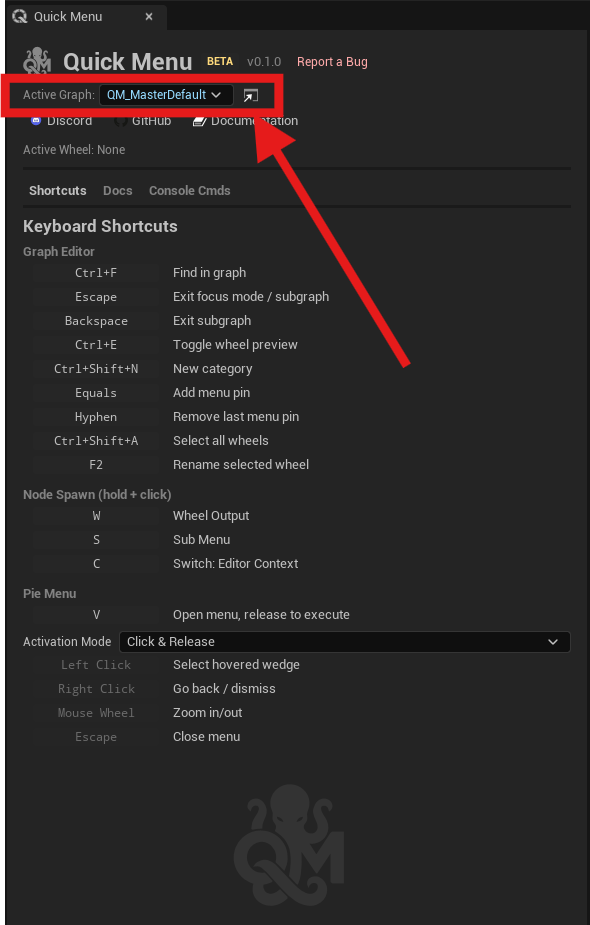
From the Quick Menu Panel
Open the Quick Menu panel (click the octopus icon in the toolbar). Use the Active Graph dropdown at the top to select which graph to use.
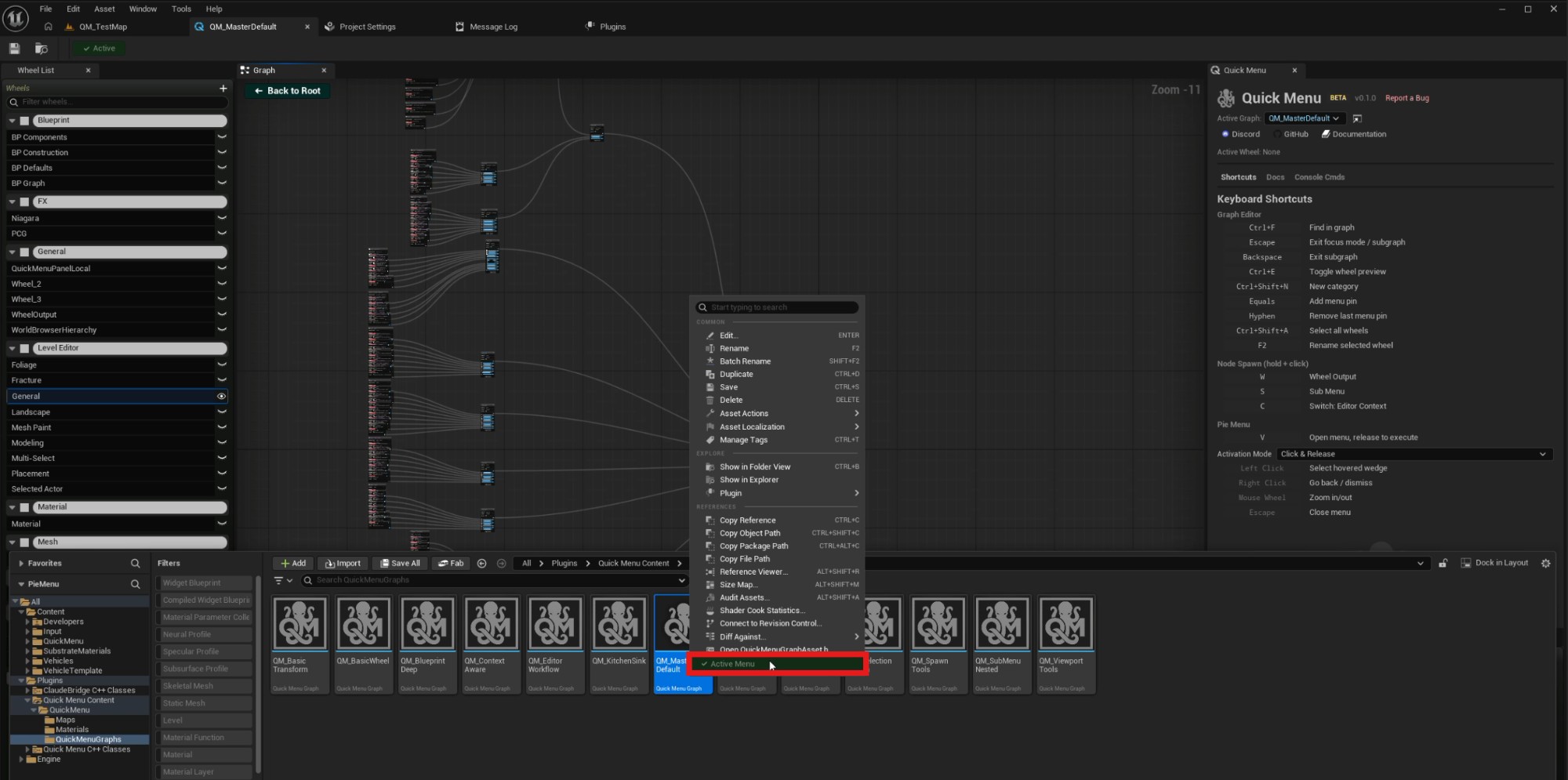
From the Content Browser
Right-click on any Quick Menu Graph asset in the Content Browser and select Active Menu to set it as the active graph.
Step 6: Try It
Press V anywhere in the editor. Your pie menu appears with your actions.